To authenticate NetSuite, you will need to provide the following information:
Consumer Key
Consumer Secret
Token ID
Token Secret
Connectivity PlugIn ID
Parser Plugin ID
This guide will walk you through finding or creating those credentials within NetSuite.
Prerequisites
- Please ensure you have Administrator permissions in your company's NetSuite instance, or someone has shared their access with you.
- Ensure you're using 'Advanced Tax':
- Go to Setup > Company > Enable Features
- Go to tax tab
- Confirm that only 'Advances Tax' is checked
- Use OneWorld: ensure you're using subsidiaries in NetSuite and have at least one set up.
- Use Multiple Currencies.
- If you were previously connected to NetSuite via Weel, make sure to follow the re-linking documentation before attempting to link again.
Instructions
Step 1: Finding your NetSuite Account ID
Enter your NetSuite Account ID in the Linking flow
This is the combination of letters or numbers before "app.netsuite.com" of the URL
If your URL is "https://7600508.app.netsuite.com...", your NetSuite Account ID is 7600508

Step 2: Enable SuiteCloud features
-
Open the NetSuite Enable Features Page
- To find, go to Setup > Company > Enable Features
- Or type Enable features in the search bar and select Setup > Company > Enable Features
-
Under SuiteCloud, check the following boxes then click save
SOAP WEB SERVICES
REST WEB SERVICES
TOKEN-BASED AUTHENTICATION

Step 3: Install the AccountLink NetSuite bundle
- Install Merge Full Permissions Bundle
- go to Customization > SuiteBundler > Search & Install Bundles
- or type Bundles in the search bar and go to Customization > SuiteBundler > Search & Install Bundles
- It may take up to 5 minutes to install and you may be re-routed to the Installed Bundles page when the installation is complete

The bundle creates a role that can authenticate to NetSuite's API. For a full list of the role's permissions, see this article. The permissions may be updated, or a separate Role may be used, but doing so could result in permission issues.
Step 4: Provide access to custom transaction types
This step is required if you have custom transaction types/records in your NetSuite instance that you need to grant access to. If you are unsure whether you have any custom transaction types, open this link to check. If this does not apply to you and you do not have a BSP Configuration Value configured, skip to Step 5. If you do have a BSP Configuration Value configured, complete Step 5 even if you do not have any custom transaction types.
- Navigate to Setup > Users/Roles > Manage Roles
Locate and select the role associated with the account
Within the role, scroll down to Permissions > Custom Record
-
Add the custom transaction type to the permissions list
- Save
Step 5: Edit role
- Go to edit role (Setup > Users/Roles > Manage Roles)
- Select the role you imported through the bundle (Merge Full Permissions)
- Click edit
- Set subsidiary restrictions (A) to selected
- Make sure Allow cross-subsidiary record viewing is unchecked (A)
- Choose the one subsidiary that you wish to use with Weel (B)
- Selecting multiple will result in an error on Weel's end.
- Click save (C)
Step 6: Assign a user to the role
-
Open Manage Users
- go to Setup > Users/Roles > Manage Users
- or type Manage Users in the search bar and go to Setup > Users/Roles > Manage Users
-
Either select a user to assign the Role to or create a new user
Most users use an existing user (often yourself) so that an additional NetSuite seat is not consumed
To create a new user, however, go to Lists > Employees > Employees > New. Create the user and grant them NetSuite access by going to the Access tab in the Employee record and select 'Give Access'
-
In the user's employee record, click Edit and go to the Access tab. In your Access tab, go to Roles and select the Role you imported through the Import Bundle process in Step 3

Click Save to apply these changes
Step 7: Create an integration to obtain your Consumer Key and Secret
-
Navigate to Integration
- go to Setup > Integration > Manage Integrations > New
- or type Manage Integrations in the search bar and go to Setup > Integration > Manage Integrations > New
-
Create an integration with the following details
NAME: any value
CONCURRENCY LIMIT: leave blank
CALLBACK URL: https://app.merge.dev/oauth/callback
REDIRECT URI: https://app.merge.dev/oauth/callback
-
Check the following boxes
REST WEB SERVICES
TOKEN-BASED AUTHENTICATION
TBA AUTHORIZATION FLOW

-
Once you click save, Copy the Consumer Key and Consumer Secret and store them in a safe place. They will only be shown once and you will need to enter it in Step 14.

Step 8: Create an access token to obtain your Token ID and Secret
-
Navigate to Access Token
- go to Setup > Users/Roles > Access Tokens > New
- or type Access Tokens in the search bar and select Setup > Users/Roles > Access Tokens > New
-
Ensure the below details are selected and click Save
Application Name: Name of the Integration created in Step 7
User: User that the Role was added to during Step 6
-
Role: The imported role (Merge Full Permissions or Merge Read-only Permissions)

Copy the Token ID and Token Secret and store them in a safe place. They will only be shown once and you will need to enter it in Step 14.

Step 9: Set up default tax for subsidiary
Go to Setup > Accounting > Set Up Taxes
- Make sure that you have default tax codes selected for all countries
Step 10: Create Chart of Accounts for Weel
Go to Lists > Accounting > Accounts > New
Click New
-
Fill:
Number - choose number
Name - it must be Weel Expenses Account
Type - Bank
Currency - Australian Dollar
Bank Account Number (you can find it in Weel Settings > Account balance > Account number)
Subsidiaries - choose the subsidiary you want to integrate to Weel, same as Step 5.B
- Click Save
Step 11: Create the default Weel vendor
- Navigate to Vendors
- go to Expenses > Lists > Vendors
- or type Vendors in the search bar and go to Expenses > Lists > Vendors
- Click New Vendor
- Fill:
- Name - it must be Weel expenses
- Primary subsidiary - the subsidiary you want Weel to have access to
- Address - fill address and mark it as default shipping but not as default billing
- Financial
- Primary currency - Australian Dollar
- Currency - Australian Dollar
Step 12: Install the Automated Bank Feeds Bundle
-
Navigate to Search & Install Bundles
- go to Customization > SuiteBundler > Search & Install Bundles
- or type Bundles in the search bar and go to Customization > SuiteBundler > Search & Install Bundles
-
Search for Automated bank feeds in the search bar
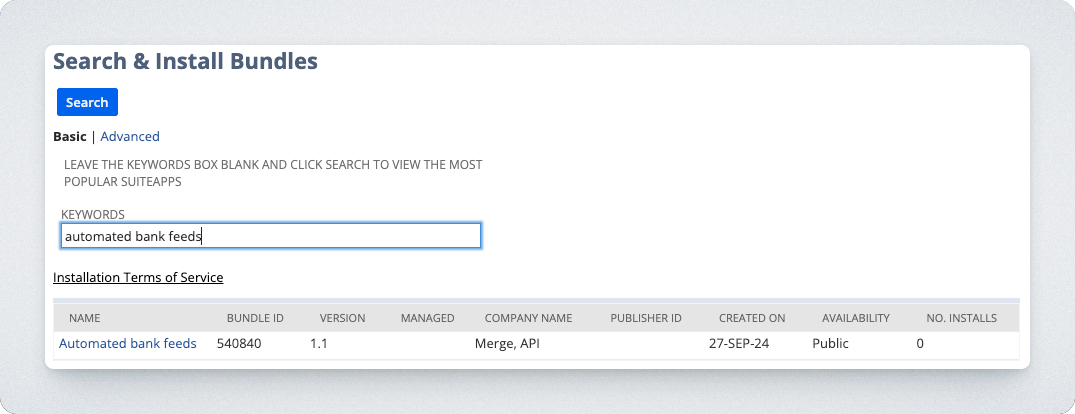
Click in to the bundle and being the installing by selecting Install
Ensure the Automated bank feeds bundle shows up when you navigate to Installed Bundles
Step 13: Find your Bank Feed credentials
-
Navigate to Plug-In Implementations
- go to Customization > Plug-ins > Plug-in implementations
- or type implementations in the search bar and go to Customization > Plug-ins > Plug-in implementations
Find the two rows with names Automated bank feeds finconn plugin and Automated bank feeds finpars plugin
-
Copy the Internal ID values of the two plugins into the linking flow
Connectivity plugin ID: internal ID for Automated bank feeds finconn plugin
Parser plugin ID: internal ID for Automated bank feeds finpars plugin
- If the ID is not visible
- click view next to the plug-in
- copy id from url
- for example if url is https://7600508-sb1.app.netsuite.com/app/common/scripting/plugin.nl?id=383, then id is 383
Step 14: Enter credentials in the linking flow
Consumer Key: Confirmation screen after creating the integration (Step 7)
Consumer Secret: Confirmation screen after creating the integration (Step 7)
Token ID: Confirmation screen after creating your Access Token (Step 8)
Token Secret: Confirmation screen after creating your Access Token (Step 8)
Connection failed
To resolve this issue, please follow the steps below to reconnect:
Return to the start and set up the connection again from the beginning.
If the problem persists after trying again, please contact support.